
Help Center
Smart Locations
Bind a section to one of a site's locations, let a grid render every location as a service-area block, and list the cities each location serves.
Last updated
A site's locations live under Locations in the site's sidebar. Smart Locations is how a page uses them without you retyping an address into every section.
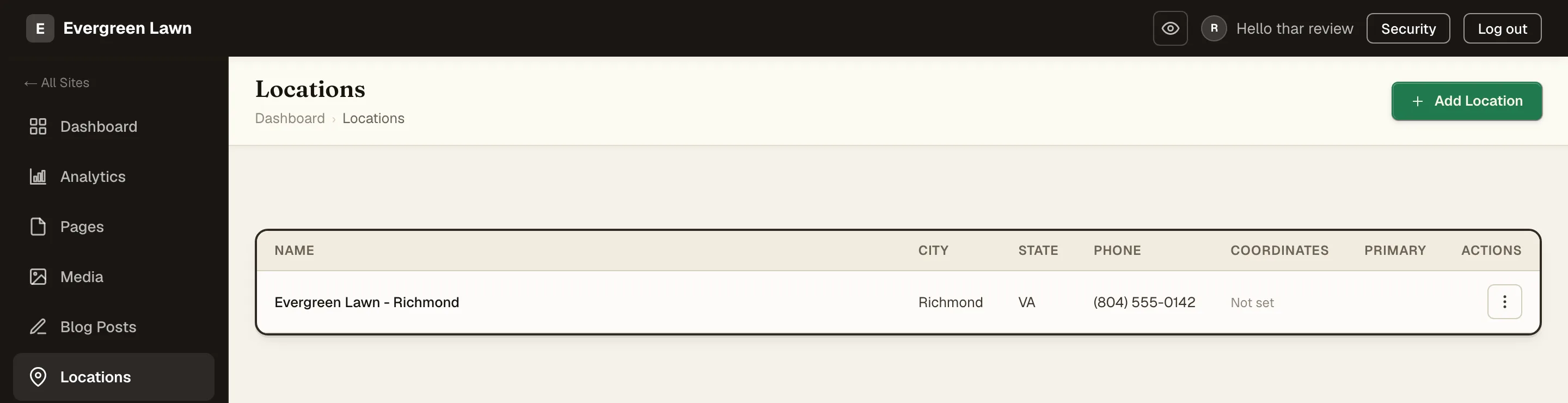
Three pieces:
- Bind a section to a location so everything inside it fills from that location.
- Location tokens that fall back sensibly when nothing is bound.
- A locations grid that renders every location as a service-area block.
Binding a Section to a Location#
Select a section, open its Settings tab, and set Location binding to a location. The other choices are Automatic (the location that serves this page's city) and All. Every {{location.*}} token inside that section now resolves to that location.
This is what makes a per-location page practical. Build one "Visit us" section, bind it, and the address, phone, hours link, and map all follow the binding rather than being typed in.
A connected Reviews element scoped to "This page's location" follows the same rule, so a bound section shows that location's own reviews.
Sites built through the template path arrive with sensible bindings already in place: each generated page defaults its location binding from its plan type: a city service page is set to Automatic, so it binds to the location that serves that city, and the service-area page is set to All locations.
What an Unbound Token Does#
A {{location.phone}} that is not inside a bound section still resolves. It looks for, in order:
- The location the section is bound to
- The location the page is set to
- Your primary location
So a single-location business never has to think about binding at all: every location token resolves to the one location. A multi-location site binds only the sections that need to differ.
A page's own location setting is Primary unless you change it, in /admin under the page's Location field. Automatic uses the location whose service cities include the city in the page's URL, falls back to the primary when none does, and only matches a location connected to its Google Business Profile (a profile link, or a place picked from Google search). All locations has no single value, so a bare token on it publishes blank. Off gives the page no default, so a bare token publishes blank unless its section is bound.
To name one location no matter the context, address it by position: {{location.1.phone}} is always the primary, {{location.2.phone}} always the second. See Merge Tokens.
A Grid That Lists Your Locations#
Give a grid the locations source inside a section whose Location binding is All, and it renders one entry per location on the site. Anywhere else it lists only the one location in play, which on most pages is the primary. Add a location under Locations and it appears; retire one and it goes. The service-area section maintains itself instead of drifting out of date the first time a client opens a new branch.
This is the block to reach for on a "Areas we serve" or "Our locations" page.
Cities and Neighborhoods Sources#
Two more sources work the same repeat-the-first-item way:
- Cities renders one entry per city the bound locations serve. Under an All binding that is every served city on the site, so an "Areas we serve" grid maintains itself from each location's Service Cities.
- Neighborhoods renders one entry per neighborhood of the page's own city, for a city page that drills down into the local areas it covers.
Both follow the page and section location binding, exactly like {{location.*}} tokens.
Service Cities#
Each location has a Service Cities list: the towns that location covers. It sits beside the location's Service areas (each city, with the neighborhoods it covers) in /admin under Locations, not on the portal's Locations screen. Once Service areas has entries, Service Cities is filled in from it on every save. On a generated site both come from the areas the client confirmed at plan review.
Fill it in and the service-area blocks can list real coverage rather than a single city name. For a trade business whose one address serves twenty surrounding towns, this is the difference between a page that says where the office is and a page that says where they will actually come out to.
A Practical Setup#
For a two-location business:
- Add both locations under Locations, switch Primary on for the main one, and fill in each one's Service areas in
/admin. - On the home page, leave contact sections unbound. They resolve to the primary.
- Give each location its own page and bind that page's contact sections to the location. (A page can instead be set to Automatic in
/admin, which picks the location from the city in the page's URL, as long as the location is connected to its Google Business Profile.) - On the "Areas we serve" page, use a grid with the locations source inside a section bound to All.
- In the footer, use
{{location.1.phone}}so the primary number is pinned everywhere regardless of which page a visitor is on.
Related#
- Merge Tokens - the full
{{location.*}}vocabulary - Local Business Blocks - NAP, hours, and map elements
- Grids - how grid sources work
- Site Settings - managing the locations list