
Help Center
Text Elements
Headings, rich text, lists, and dividers - semantic heading levels, sizes and colors, multi-column text, list styles, and alignment.
Last updated
Four elements carry the written content of a page: Heading, Text, List, and Divider. They are simple on purpose - the styling comes from your brand settings, so the same elements look right on every site you build.
Heading#
A Heading is a single semantic heading line (h1 through h6).
Content#
Type the heading text in Content. A safe set of inline HTML is supported: use <br> to force a line break, or <strong>, <em>, and <span> for emphasis. Block tags and scripts are stripped at render, so pasted markup cannot break the page.
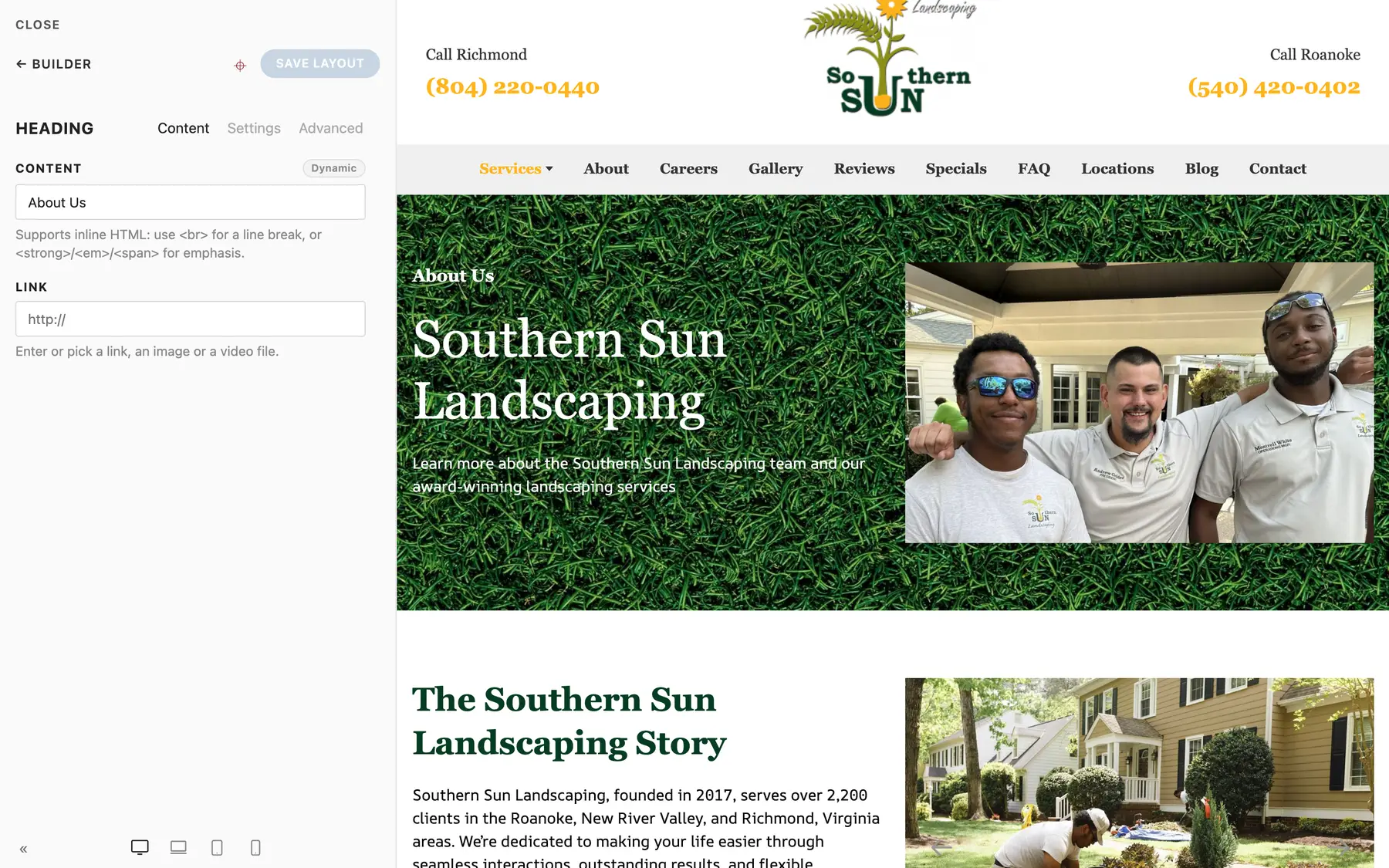
You can also set a Link to make the whole heading clickable.
Settings#
| Field | Options | Notes |
|---|---|---|
| Style | Default, Small, Medium, Large, X-Large, 2X-Large, Primary, Hero | The visual size. Display sizes override the tag's default size, so an h2 can render hero-sized. |
| Color | None, Muted, Emphasis, Primary, Secondary, Success, Warning, Danger, Background | Named colors, not hex values. Primary and Secondary follow the site's brand colors, Background paints white for headings on a dark band, and None leaves the heading in the site's heading color. |
| HTML Element | h1 through h6, div | The semantic level. |
| Text Alignment | Left, Center, Right, Justify | |
| Max Width | Default, X-Small through X-Large | Caps the heading width as a percentage of its container to control line wrapping; the capped box follows Text Alignment. |
Headings also support the entrance Animation options, margins, and the responsive Show on control.
All eight colors reach the published page. Before version 2.0.0 only Primary and Secondary did, so on a site built before 2.0.0 a color you picked shows up for the first time on its next deploy. Headings on those older sites that came from a template pack may carry a near-black color that was invisible until now; on a branded or dark band, open the heading and set Color to None to hand it back to the brand.
Heading Structure Matters#
Use exactly one h1 per page (usually the hero heading), then h2 for section headings and h3 below those. Style and semantics are separate controls here on purpose: pick the tag for document structure and the Style for how big it looks. Search engines read the tags; see Page SEO.
Text#
The Text element is a rich text block for paragraphs.
Content#
Edit the rich text in Content. Keep one idea per paragraph; the renderer preserves your paragraph breaks.
Settings#
| Field | Options |
|---|---|
| Columns | None, 2 through 6 - flows long text into newspaper-style columns |
| Max Width | Default, X-Small through X-Large - caps the text width |
| Text Style | None, Meta, Lead, Small, Large, Badge |
| Text Color | None, Muted, Emphasis, Primary, Secondary, Success, Warning, Danger |
| HTML Element | div, p, address, blockquote |
| Text Alignment | Left, Center, Right, Justify |
Lead is the one to remember: it renders the paragraph slightly larger, made for the intro line under a hero heading.
List#
A List renders a styled list from individual List Item children. Add, reorder, and remove items in the Inspector.
Settings#
| Field | Options |
|---|---|
| Style | Default, Bullet, Divider, Striped, Hyphen, Circle, Square, Decimal |
| Size | Default, Large, Collapse |
| HTML Element | Unordered (ul) or Ordered (ol) |
| Columns | 1 to 4 - flows the list into columns |
| Stack Below | Never, Tablet, or Desktop - the screen size below which a multi-column list goes back to one column |
Use a List for real list content (steps, inclusions, features as prose). For icon-and-text feature lists arranged in a grid, use the Grid element with icon position Left instead - see Grids.
Divider#
A Divider is a horizontal separator.
| Field | Options |
|---|---|
| Style | Default, Icon, Small, Vertical |
| Color | Default, Primary, Secondary, Muted, Emphasis, Light. Since version 2.0.0 it applies to every style, Icon dividers included |
| HTML Element | hr or div |
| Alignment | Left, Center, Right |
Use Dividers sparingly - Section spacing usually separates content better than a rule does.
Alignment Consistency#
One habit that keeps pages looking professional: match alignment within a Section. A center-aligned Section should center its heading, its intro Text, and its buttons together - never a left-aligned heading floating above centered buttons. Vary alignment between Sections, keep it consistent inside each one.
Summary#
| Element | Use for |
|---|---|
| Heading | Every title, one h1 per page, h2/h3 below |
| Text | Paragraph copy, lead intros |
| List | Steps, inclusions, simple itemized content |
| Divider | Occasional visual separation |