
Help Center
Builder Basics
Learn the drag and drop website builder - the canvas, adding elements, the Inspector, the Outline, and how saving relates to going live.
Last updated
Every page in Seedly Sites is built in the visual builder: a real drag and drop website builder with a live canvas, not a template picker. This page covers the parts of the builder you will touch on every page.
The Builder Layout#
Open any page for editing and you get three working surfaces:
| Surface | What it does |
|---|---|
| Canvas | A live preview of the page. Click anything to select it and open its settings, and see changes as you make them. Reordering happens in the Outline. |
| Outline | The page as a tree: Sections, Rows, Columns, and the elements inside them. Use it to select or move things that are hard to click on the canvas. |
| Inspector | The settings panel for whatever is selected. Fields are grouped into tabs, typically Content, Settings, and Advanced. |
The bottom bar of the builder panel has a preview-width switcher, so you can check the page at TV, laptop, tablet, and phone widths while you edit.

The Page Structure#
Pages follow a strict hierarchy, top to bottom:
- Section - a full-width horizontal band of the page
- Row - a layout grid inside a Section (Whole, Halves, Thirds, and more)
- Column - a slot inside a Row
- Elements - the content itself: headings, text, images, buttons, grids, and so on
This structure is what keeps every page responsive. You never position anything with pixel coordinates; you place elements into columns and let the layout system handle each screen size. See Sections and Rows and Columns for the layout controls.
Adding Elements#
- In the Outline, find the Column you want to add to
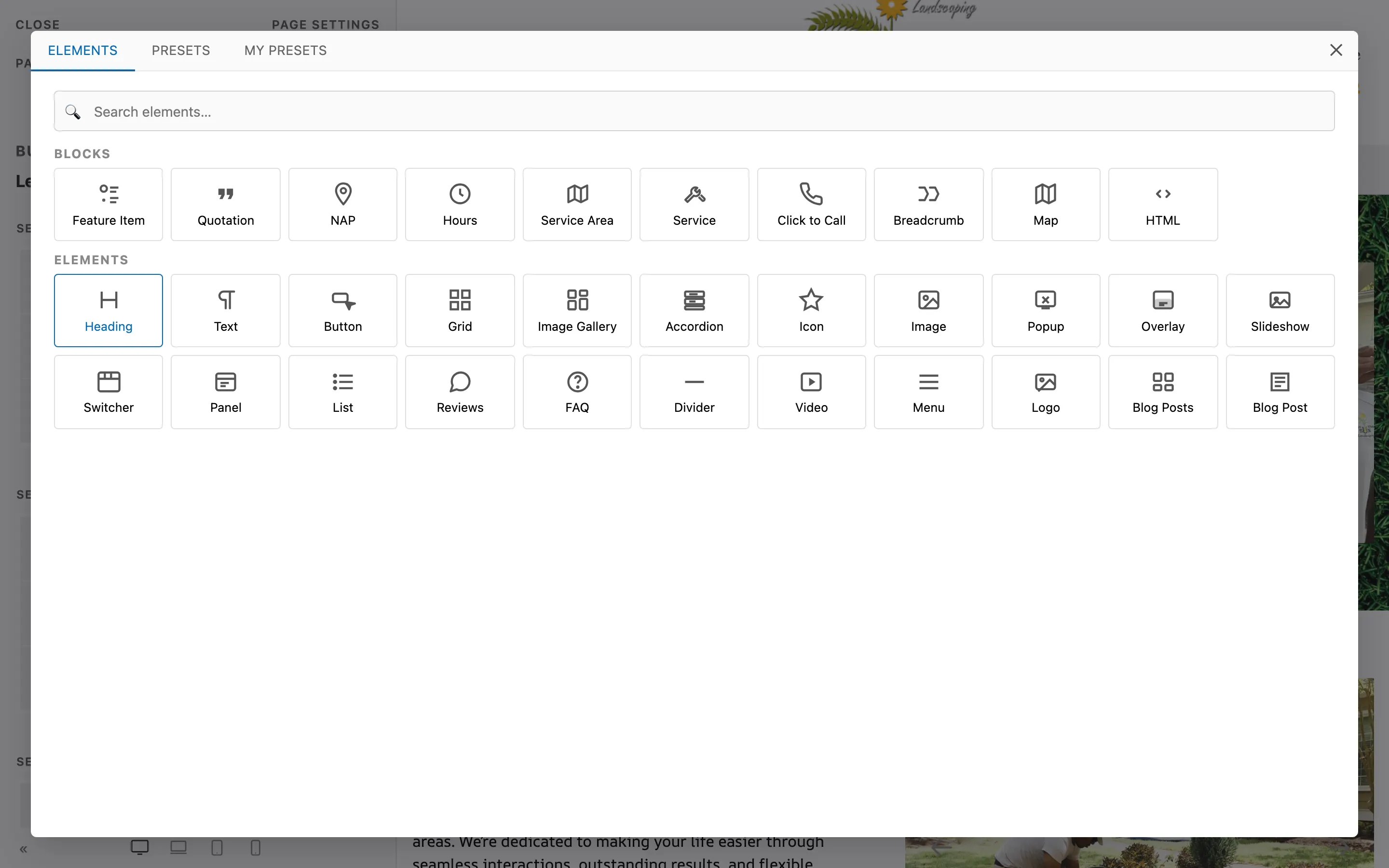
- Click the + inside it (an empty Column shows one in the middle; between existing elements, hover to reveal it) to open the element library
- Pick an element tile - the library groups Blocks and Elements, with a search box at the top. Items that live inside a container (a Button's buttons, a Grid's panels) are added from that container's item list in the Inspector instead
- The element appears on the canvas with placeholder content; select it and edit in the Inspector
The library also has a Presets tab (ready-made sections like heroes and feature grids) and a My Presets tab (sections you have saved yourself). Picking from either adds the whole Section at the bottom of the page; drag it into place in the Outline. See Presets and Saved Blocks.
Selecting and Reordering#
- Click an element on the canvas to select it and open its Inspector
- Drag elements, Rows, and Sections in the Outline to reorder them
- Container elements (Buttons, Accordions, Grids, Slideshows) manage a list of child items; the Inspector shows the item list so you can add, reorder, and remove items
If you cannot grab something on the canvas, use the Outline - every node on the page is selectable there.
Undo and Redo#
The builder keeps an undo history of your recent changes in this session:
- Cmd/Ctrl+Z - undo
- Cmd/Ctrl+Shift+Z (or Ctrl+Y) - redo
Standard text editing shortcuts keep working inside text fields.
Styling: Use Native Fields First#
Almost everything you want to change has a purpose-built field in the Inspector:
- Section Style, Text Color, Max Width, and padding scales
- Row Layout, gaps, and alignment
- Column widths per breakpoint, background, and padding
- Heading Style (size), Color, and Text Alignment
- Button Style and Size
Use those native fields. They keep the page consistent with the site's brand tokens, they respond correctly on every device, and they stay editable by anyone who opens the page later.
The Advanced Tab#
Almost every element carries the same Advanced bundle. Item types (a Button's buttons, a Grid's panels, and so on), the Share Bar, and the blog template elements leave out the CSS box, and the Blog Post marker has no Status:
| Field | Purpose |
|---|---|
| Name | A label for this element inside the builder (shows in the Outline) |
| Status | Switch the element off. It stays in the page and in the builder but is hidden on the live site, and switching off a Section does the same for everything inside it. A switched-off element is also left out of the page's structured data and the automatic meta description, and it no longer blocks a deploy. One exception: structured data you pasted yourself into an HTML block still publishes when that block is off |
| ID | A custom HTML id (useful for anchor links). Inside the header and footer the published id gets a prefix - see Header and Footer |
| Classes | One or more CSS class names, separated by spaces |
| Attributes | Extra HTML attributes, one per line as name=value |
| CSS | Custom CSS scoped to this element only. Its Help badge lists the classes you can target inside the element |
The CSS box is the escape hatch, not the default. Reach for it only when no native field models what you need. If you find yourself writing CSS for padding, colors, alignment, or widths, there is almost always a native field that does it better.
The Classes field is how you apply your site's shared brand classes so one global change updates every element that uses them - see Brand DNA.
Global CSS#
Site-wide CSS is not edited inside the builder. It lives on the site's Settings page in the Custom CSS field, which loads after all other stylesheets so it can override defaults. Code fields in the Inspector, such as an element's CSS box, are plain text areas with line numbers.
Saving, Publishing, and Going Live#
This is the most important concept in the whole product:
- Save stores your work in the CMS
- Publish marks the page as the version that should be live
- Deploy actually rebuilds the static site and ships it to hosting
Publishing does not change the live website. Nothing changes the live website until someone clicks Deploy. Deploys are always a deliberate, manual step - there is no automatic deploy when you save or publish. This is a safety feature: you can edit and publish all afternoon, then ship everything in one reviewed deploy.
Read Preview, Publish, and Deploy for the full workflow.
Summary#
| Task | Where |
|---|---|
| Add an element | Select a Column, click add, pick from the library |
| Change content | Select the element, use the Content tab |
| Change styling | Select the element, use the Settings tab (native fields first) |
| Anchor links, classes, custom CSS | Advanced tab |
| Reorder anything | Drag in the Outline |
| Undo a mistake | Cmd/Ctrl+Z |
| Make it live | Save, publish, then Deploy (manual, always) |