
Help Center
Blog
Write and manage blog posts - rich text editing, categories and tags, author profiles with E-E-A-T signals, scheduling, and URL structure.
Last updated
Every client site includes a full blog: posts written in a rich-text editor, categories and tags with their own archive pages, author profiles with real E-E-A-T signals, and builder-editable templates for the archive and single-post layouts.
As with pages: publishing a post updates the CMS, not the live site. The post appears online after the next Deploy. A scheduled post flips to published automatically at its time, but still needs a deploy to actually ship.
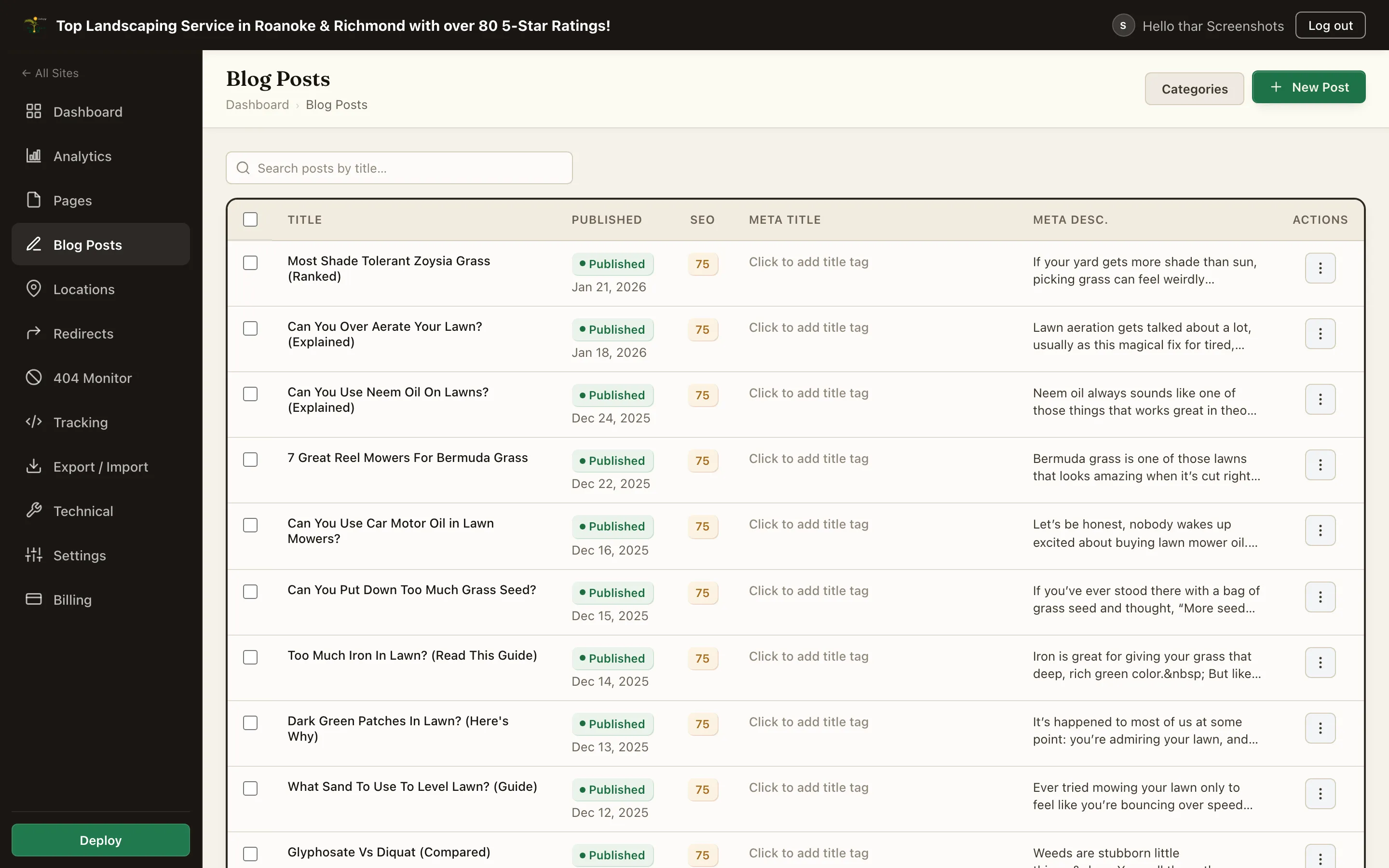
Writing a Post#
- Open Blog Posts in the site's sidebar and create a new post
- Enter the Title - the slug auto-fills from it
- Write the body in the rich-text editor (headings, lists, quotes, images from the media library, links)
- Pick a Category, add Tags, and confirm the Author
- Set a Featured Image
- Publish now, or set Schedule Publish for later
Post Fields#
| Field | What it does |
|---|---|
| Slug | The post's URL segment, editable in the sidebar |
| Excerpt | Short summary used on archive cards and as the meta-description fallback |
| Featured Image | Hero image for the post, archive cards, and social shares |
| Category | One category per post; each category gets an archive page |
| Tags | Any number of tags; each tag gets an archive page |
| Author | Defaults to you; drives the byline and author profile box |
| Published date | The display date and sort order |
| Table of Contents | Type [table-of-contents] on its own line in the body, and a collapsible contents list built from the post's H2 headings appears there. A post without it has none |
| Password | Password-protect an individual post (encrypted in the published output) |
The post editor mirrors the page editor: the same SEO, Social, Schema, and Linking tabs, the same focus-keyword analysis panel, and the same 301-redirect prompt if you rename a published post's slug. See Page SEO for the SEO fields.
Categories and Tags#
Categories and tags are managed per site. Each one automatically gets an archive page listing its posts, linked from post metadata. Archives live under the blog path (for example /blog/category/lawn-care/). Use categories for the blog's main sections and tags for cross-cutting topics.
Authors and E-E-A-T#
Search engines increasingly weigh who wrote the content. Each user has a public author profile with:
- Bio - shown in the author box on posts and the author archive
- Headshot - shown alongside the bio
- Job title / credentials - for example "Master Plumber, 20 yrs"
- Profile URLs - social and professional links
What renders from this:
- a byline on every post linking to the author's archive page (at
/author/name/) - an author bio card on the post
- a dedicated author archive page with the headshot, bio, links, and the author's posts
- Person structured data consolidated across the site, so every post by the same author points at one author entity, plus profile-page markup on the archive
Authors can edit their own profile; the operator can edit anyone's.
URL Structure#
By default posts live at /blog/post-slug/, and the archive at /blog/.
Blog post URL prefix is the one control, and it takes exactly two values:
| Value | Posts serve at |
|---|---|
blog (the default) | /blog/post-slug/ |
| Empty | /post-slug/ |
Serving posts at the root matches migrated sites whose original post URLs had no blog segment, and old /blog/post-slug URLs are 301-redirected automatically. The archive and category/tag pages always stay under /blog.
Anything other than those two values is refused when you save, because the renderer only builds those two shapes. A free-text prefix like news would produce links the site never generates.
When posts are served at the root, a post slug that collides with a page slug lets the page win, and the post stays reachable under /blog/post-slug.
The /blog index's title, heading, and meta description can each be overridden in /admin, under Site Settings. Changing URL structure requires a deploy to take effect.
Archive and Post Templates#
The blog archive layout and the single-post layout are builder-editable template pages. You can redesign them like any other page - add Sections above and below the post listing or the article body - and assign them in the Technical tab. When no template is assigned, the built-in layout is used. The blog category and tag archives use the archive template too.
The Blog Posts element in the archive template has a Layout select - the full roll with the sidebar, or the roll on its own for a full-width archive - and a Built-in heading toggle to turn the stock blog title off when your template carries its own (category and tag pages rely on it too). In the post template, the Share Bar block places the back-to-blog link and the social share row (X, Facebook, LinkedIn) wherever you want them, so the post footer is yours to design.
If your archive template has no main heading of its own, the listing heading is promoted to the page's main heading for you, so leave Built-in heading on unless your template carries one. A heading you have switched off does not count as one.
Posts emit article structured data (headline, dates, author, publisher, image) automatically, and the blog publishes an RSS feed.
Summary#
| Task | Where |
|---|---|
| Write / edit posts | Blog Posts, rich-text editor |
| Organize | One category + any tags per post |
| Author credibility | User profile: bio, headshot, credentials, links |
| Publish later | Schedule Publish (then deploy after the time passes) |
| Change URL shape | Blog post URL prefix, in /admin under Site Settings |
| Redesign the blog | Archive + post templates in the builder |
| Go live | Deploy - publish alone never updates the live site |