
Help Center
Pages
Create and edit pages - slugs and 301 prompts, drafts and scheduling, password protection, internal links, and the content/SEO analysis panel.
Last updated
Pages are the core of every client site. Each page has a title, a slug, and a content tree you lay out in the visual builder, plus SEO and publishing controls in the page editor.
One rule to internalize before anything else: publishing a page does not change the live site. Publish updates the page's status in the CMS; the static site is only rebuilt when you press Deploy. See Preview, Publish, and Deploy.
The Pages List#
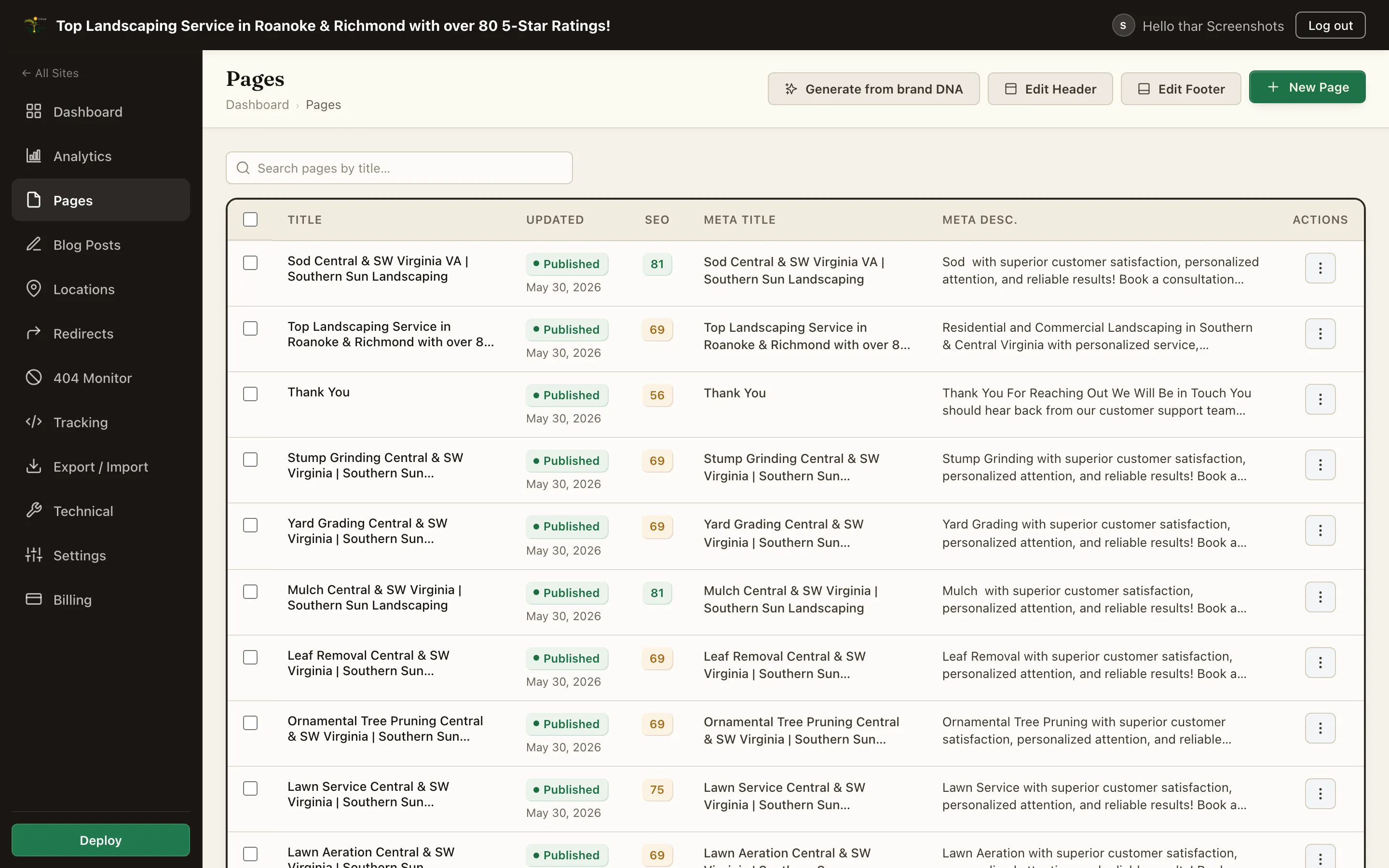
Pages in a site's sidebar lists every page with its status (draft or published) and last-updated time. From here you can:
- Create a new page
- Edit a page (opens the page editor)
- Use the row actions menu to Copy, Preview, or Delete a page (copies land as drafts)
- Open a page with Edit, then Open in Builder to edit the layout
Creating a Page#
- Open Pages and click New Page
- A draft called "Untitled Page" is created and the visual builder opens on it, so you can start building straight away
- Back in the page editor (Edit on the page's row), set the Title and the Slug
Slugs#
The slug is the page's URL path, edited in the sidebar. A new page starts with a placeholder slug, and the slug does not follow the title, so set it yourself.
- Slugs are unique per site, so two different client sites can both have an
aboutpage. - Which page serves at the site root is chosen by the Home Page selector in the Technical tab, not by a magic slug.
Changing a Published Slug#
Renaming a published page's slug changes its URL, which breaks inbound links unless you redirect. After a slug change the editor shows a dismissible prompt offering to create a 301 redirect from the old URL to the new one. Accept it unless you have a specific reason not to. Redirects ship with the next deploy.
If the renamed page was the home page, the home-page setting follows the rename automatically.
The Page Editor#
Opening a page shows the editor: the main Page Content card (with the Open in Builder button) and tabbed cards for SEO, Social, Schema, Content, and Linking, plus sidebar controls.
Sidebar Controls#
| Control | What it does |
|---|---|
| Status | Draft or Published |
| Slug | The URL path (see above) |
| Featured Image | The page's representative image, picked from the media library. Used as the SERP thumbnail and social fallback |
| Schedule Publish | Publish automatically at a future date and time |
| Page Password | Password-protect the page. Leave empty for public access |
| Cornerstone | Marks the page as pillar content you want to funnel internal links toward |
Drafts, Publishing, and Scheduling#
- A draft is only visible in the CMS and the builder preview - never on the live site.
- Publishing marks the page ready for the live site. It still requires a Deploy to appear.
- Scheduled publish flips the page to published at the chosen time. The flip is automatic, but the deploy is not: schedule the content, then deploy after the scheduled time (or as part of your next planned deploy) for it to go live.
Password Protection#
Setting a Page Password gates the page behind a password prompt. The protected content is encrypted in the published output, not just hidden, so the static file does not leak the body.
Internal Links#
When a button or link in the builder points at another page, use the internal page picker rather than typing the URL. Picked links store a stable reference to the target page, so they keep working even if that page's slug is later renamed - the rendered link always resolves to the current URL.
The editor's Linking tab helps you build internal-link coverage: it surfaces the site's other pages (cornerstone pages first) as link candidates.
Content / SEO Analysis#
The Content / SEO analysis panel scores the page against the Focus Keyword you set in the SEO tab:
- keyword presence in the title, H1, meta description, slug, and body
- readability scoring of the body copy
- character counters on the meta title and description (length is shown, not scored)
- a live SERP preview (how the result looks in Google) and a social-card preview
- a headings outline showing the page's H1-H6 structure at a glance
Treat it as a checklist, not a law: fix the red items, consider the yellows, and keep the copy written for humans. Per-page SEO fields themselves are covered in Page SEO.
Summary#
| Task | Where |
|---|---|
| Create / duplicate / delete a page | Pages list |
| Build the layout | Open in Builder, on the page editor |
| Change the URL | Slug field (+ accept the 301 prompt if published) |
| Publish later | Schedule Publish (deploy afterward) |
| Protect a page | Page Password |
| Optimize for search | SEO tab + Content / SEO analysis panel |
| Make it live | Deploy - publishing alone never touches the live site |