
Help Center
Grids
Build feature grids, service cards, icon lists, logo strips, and blog card rows with the Grid element and its per-breakpoint columns.
Last updated
The Grid is the single most versatile element in the builder and the one to reach for whenever you need repeating panels: feature lists, service cards, trust bars, logo strips, team cards, and blog rolls. A Grid is a container of Grid Item children; the container owns the layout and shared styling, each item owns its content.
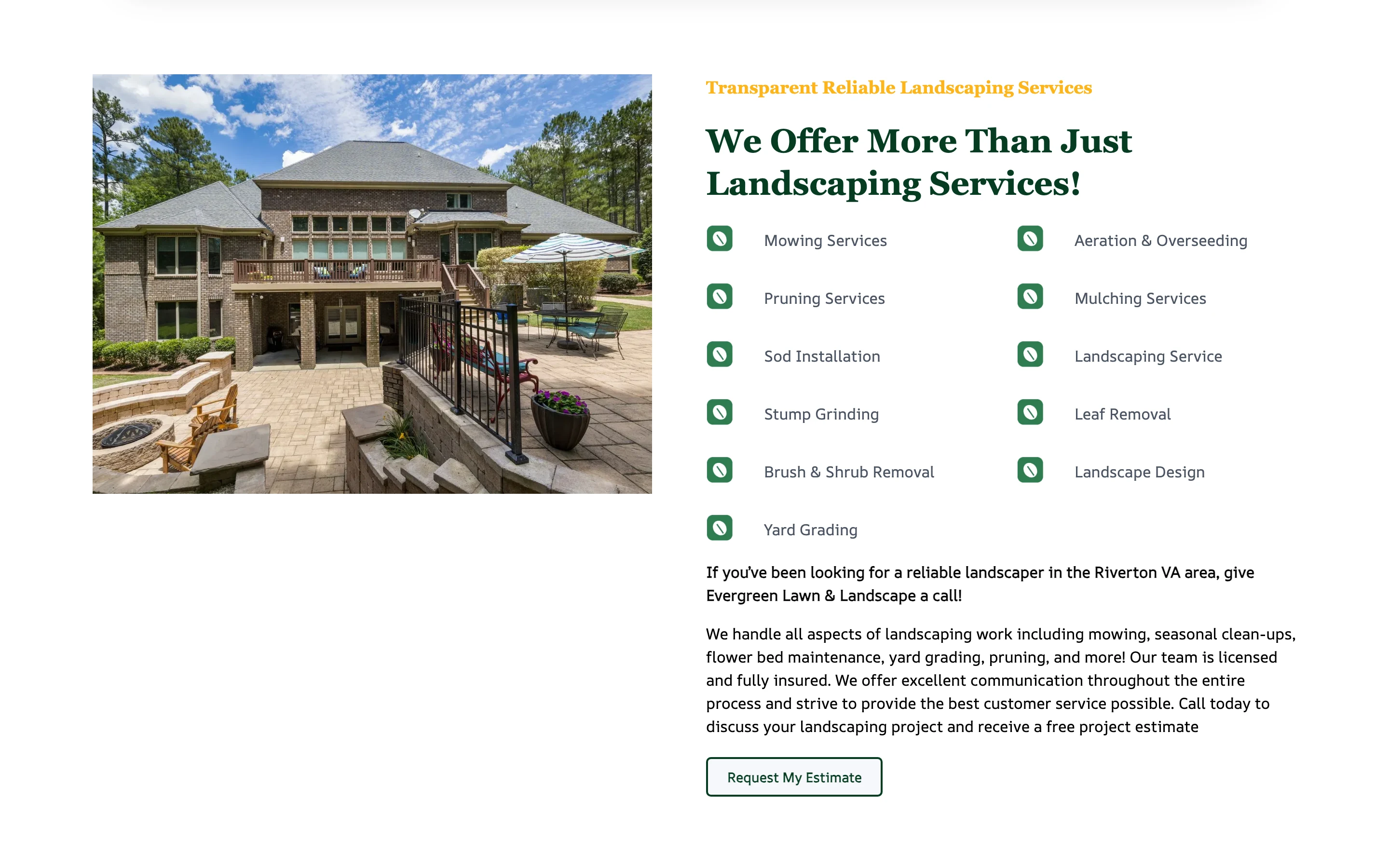
Anatomy#
Each Grid Item can carry:
| Field | Notes |
|---|---|
| Icon or Image | The visual - an icon from the set, an SVG, or a photo |
| Title | The item heading |
| Content | Body text |
| Link + Link Title | Where the item points |
Leave any of them empty and the item simply renders without that part - an image-only grid is how you build a logo strip.
Card Styling#
Container-level selects style every card at once:
| Field | What it does |
|---|---|
| Panel Style | A brand-token surface preset for the card |
| Heading Style / Body Style | Typography presets for every item's title and body |
| Title Color | Overrides the title color across the grid |
| Link Style | The look of every item's link or button |
| Icon Size | Small through X-Large, applying to icon images too |
| Image Corners | Corner radius on item images |
| Image overlay | A featured-card mode where the image fills the card and the text overlays it |
Set both Width and Height in the Grid's Image settings and every panel image crops to that aspect ratio, so mixed source photos render as identical cards. The item link's button follows the card's content alignment, and a card's internal gap scales with its panel padding.
Columns (Per Breakpoint)#
The container sets how many columns render at each screen width:
| Field | Options |
|---|---|
| Phone Portrait | Inherit, 1 to 6 columns |
| Phone Landscape | same |
| Tablet Landscape | same |
| Desktop | same |
| Large Screens | same |
Empty values inherit from the next smaller breakpoint. Typical: 1 column on Phone Portrait, 2 on Tablet Landscape, 3 or 4 on Desktop.
Grid Column Gap and Grid Row Gap control spacing (Default, None, Small, Medium, Large). Keep a visible gap on card grids - cards touching edge to edge always looks broken.
Content Layout#
| Field | Options | Use |
|---|---|---|
| Grid Alignment | Left, Center, Right | Where the grid sits when narrower than its container |
| Content Alignment | Left, Center, Right | Text alignment inside each panel |
| Title Element | H2, H3, H4, H5, Paragraph | Semantics - use H3 under a section H2 |
| Title Size | Default, Small, Medium, Large, X-Large | Visuals, independent of the tag |
| Vertical Alignment | checkbox | Center each panel within its row |
| Grid Width | Auto, Expand, or Flex (tight row) | Flex packs items into a wrapping row sized to their content and ignores the column counts |
| Grid Breakpoint | Always, Phone, Tablet, Desktop | The screen size below which the grid stacks to a single column |
Icon Options#
Three fields turn a plain grid into an icon feature list:
| Field | Options | Effect |
|---|---|---|
| Icon Position | Top or Left | Left puts the icon beside the text - the checkmark-list look |
| Icon Background | brand color options | Renders each icon as a white glyph inside a filled colored circle (the classic trust-bar treatment) |
| Icon/SVG Color | None, Emphasis, Primary, Secondary, Muted, Light | For uncircled icons |
SVG icons can be inlined (Make SVG stylable with CSS) so they inherit the icon color, with an optional stroke animation.
Panel (Card) Styling#
To render each item as a card, use the panel group on the container:
| Field | Options |
|---|---|
| Panel Background | Color |
| Panel Padding | None, Small, Medium, Large |
| Panel Radius | None, Small, Medium, Large, Brand (token) |
| Panel Border | On or off - a hairline border around each panel |
| Panel Shadow | None, Small, Medium, Large, X-Large |
For a left accent bar on each card, use the Grid's Advanced CSS box.
All items share the panel styling, which is exactly what keeps a card row looking consistent.
Link Style#
Link Style controls how an item's link renders:
- Card link (default) - the whole panel is clickable
- Button (Primary), Button (Secondary), Button (Default), or Button (Outline) - a visible button renders at the bottom of each panel, e.g. "Read more" on blog cards
- Text link or Link - a plain link at the bottom of each panel instead of a button
Recipes#
Icon Feature List (Checkmarks)#
- Add a Grid, set columns to 1 (phone) / 2 (desktop)
- On each item: pick the check icon, add the feature text as Title or Content
- Container: Icon Position Left, Icon Background in your brand color
Logo Strip#
- Add a Grid with image-only items (no titles or content)
- Set a small Width on the images, a higher column count, Column Gap None
- Keep 2+ columns on Phone Portrait so logos stay side by side on phones
Service Cards#
- Grid with 3 columns on Desktop, 1 on Phone Portrait
- Each item: image, Title, one-line Content, Link
- Panel Background + Padding Medium + Radius Small + a gap on both axes
One Grid to Rule Them All#
The Grid element is the only grid in Seedly Sites. If you are following a tutorial or an older page structure that seems to use some other grid-like layout wrapper, rebuild it with this element (or with Row + Columns for page-level layout). Row and Columns arrange unlike things side by side; the Grid repeats like things.
Grid changes, like everything else, reach the live site on the next manual Deploy.