
Help Center
Sections
Work with Sections - backgrounds and overlays, the Style presets, text color, max width, padding scales, height, and responsive visibility.
Last updated
A Section is a full-width horizontal band of a page. Every page is a stack of Sections, and every Section contains Rows and Columns that hold the actual content. Sections are where you set the backdrop: background, color scheme, spacing, and width.
Creating a Section#
- In the Outline, click the ⊕ pin under any Section card to add a blank Section after it (on an empty page, use the pin in the Outline or + Add section on the canvas)
- A new blank Section starts with one full-width Row and one empty Column, ready for elements
- For a ready-made layout instead, open the element library from the + inside any Column and pick from its Presets tab - the preset Section is added at the bottom of the page, and you drag it into place in the Outline (see Presets and Saved Blocks)
Content Tab: Background and Overlay#
Background Image#
Set Image to render a photo behind the whole Section - the classic hero band. The published site automatically serves a smaller image variant to phones and the full-size image to larger screens, so you do not need to prepare mobile versions yourself.
Image Fit, Image Position, and Image Repeat control how the photo covers the band when you want something other than the default cover crop - a contained logo wall or a repeating texture, for example.
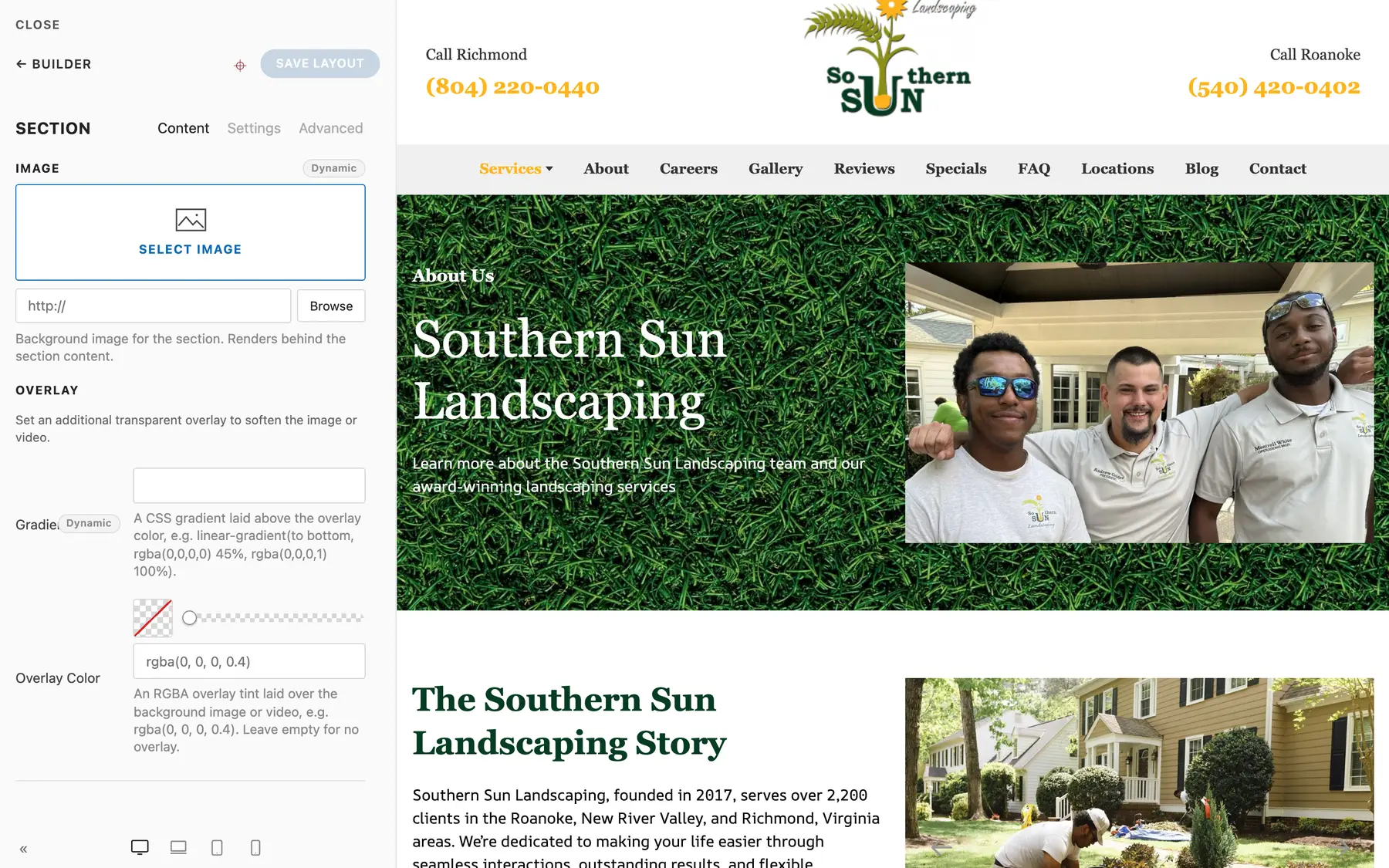
Overlay#
When text sits on a photo, use the Overlay group to keep it readable:
- Overlay Color - a transparent tint laid over the background, e.g. rgba(0, 0, 0, 0.4). Raise the alpha value for a darker, more legible backdrop.
- Gradient - a CSS gradient layered above the overlay color, e.g. a fade to dark at the bottom of a hero.
Leave both empty for no overlay at all.
Settings Tab#
Style#
The Style select applies one of the site's color schemes to the whole band:
| Style | Use for |
|---|---|
| Default | The normal page background |
| Muted | A subtle alternate band (great for zebra-striping sections) |
| Primary | A bold brand-colored band (CTAs, banners) |
| Secondary | The alternate strong scheme (often a dark band) |
Styles come from your site's brand colors in Site Settings, so they stay consistent across every page. With Style on Default you can also set a custom Background Color for a one-off band.
Location Binding#
Location binding ties the Section to one of the site's Locations, so {{location.*}} merge tokens, Maps, and connected Reviews inside it use that Location: Off (render as authored), Automatic (this page's city), Primary (main location), All locations, or one specific Location. See Smart Locations.
Text Color#
When a Section sits on a photo or a custom dark background, set Text Color to Light or Dark to force readable text, buttons, and controls across everything inside.
Max Width#
Max Width caps the content width inside the Section: Default, X-Small, Small, Large, X-Large, Expand, or None. The band itself always spans the full screen; this controls how wide the content column is within it.
Padding#
Vertical spacing uses two selects, Padding Top and Padding Bottom, each with a scale: Default, X-Small, Small, Medium, Large, X-Large, or None. Default is the standard section rhythm, and X-Small is deliberately tiny - a hair of breathing room rather than a full band of space.
Padding is mobile-first by design: each step on the scale automatically renders tighter on phones and at full size on larger screens. That is deliberate - long desktop paddings feel empty on a phone. Do not fight it with custom CSS; pick the step that looks right on desktop and the phone version takes care of itself.
Height and Vertical Align#
- Height sets a minimum height: Small, Medium, Large, or Viewport Height. Viewport Height plus a background image is the full-screen hero pattern.
- Vertical Align (Top / Middle / Bottom) positions the content when the Section is taller than its content.
Shape and Dividers#
Two groups give a Section a shaped edge instead of a straight line:
- Shape - a Wave laid over the band, with Shape Color (Muted, Primary, Secondary, or Background), Shape Position (Bottom, Top, or Cover), and Flip Shape.
- Divider - a shaped edge on the top, the bottom, or both: Wave, Curve, Tilt, Triangle, Jagged, Arrow, Mountains, Book, or Torn / Paint Swipe. Each edge takes a brand color (Muted, Primary, Secondary, or Background) or a custom hex or rgb value, its own height for desktop and for phones, and horizontal or vertical flips.
HTML Element#
Choose the semantic tag the Section renders as: section, div, aside, article, header, footer, or main. Leave it on section unless you have a structural reason.
Animation#
Optionally animate the Section as it scrolls into view: Fade In, Slide Up, Slide Down, Slide Left, Slide Right, or Zoom In, with an optional delay in milliseconds.
Show On (Responsive Visibility)#
Show on controls which devices render this Section:
- All devices (default)
- Desktop only - hidden on phones
- Mobile only - hidden on tablets and larger
Hidden Sections stay visible and editable in the builder; the hiding applies on the rendered site. This is how you build device-specific bands, like a mobile call-to-action Section that desktop visitors never see. Only the header can stick to the top of the screen - see Header and Footer.
Advanced Tab#
The standard Advanced bundle: Name (label it in the Outline - do this for every major Section), Status (disable without deleting), ID (anchor target for in-page links), Classes, Attributes, and scoped custom CSS. Prefer the native fields above before writing CSS - see Builder Basics.
Remember: Deploys Are Manual#
Editing and publishing a Section updates the CMS, not the live site. Your changes go live on the next manual Deploy. See Preview, Publish, and Deploy.
Summary#
| Control | Options |
|---|---|
| Style | Default / Muted / Primary / Secondary |
| Text Color | None / Light / Dark |
| Max Width | Default / X-Small / Small / Large / X-Large / Expand / Full width (edge to edge) / None |
| Padding Top and Bottom | Default / X-Small / Small / Medium / Large / X-Large / None (auto-tightens on phones) |
| Height | None / Small / Medium / Large / Viewport Height / Viewport (fill remaining) |
| Show on | All devices / Desktop only / Mobile only |