
Help Center
Media Library
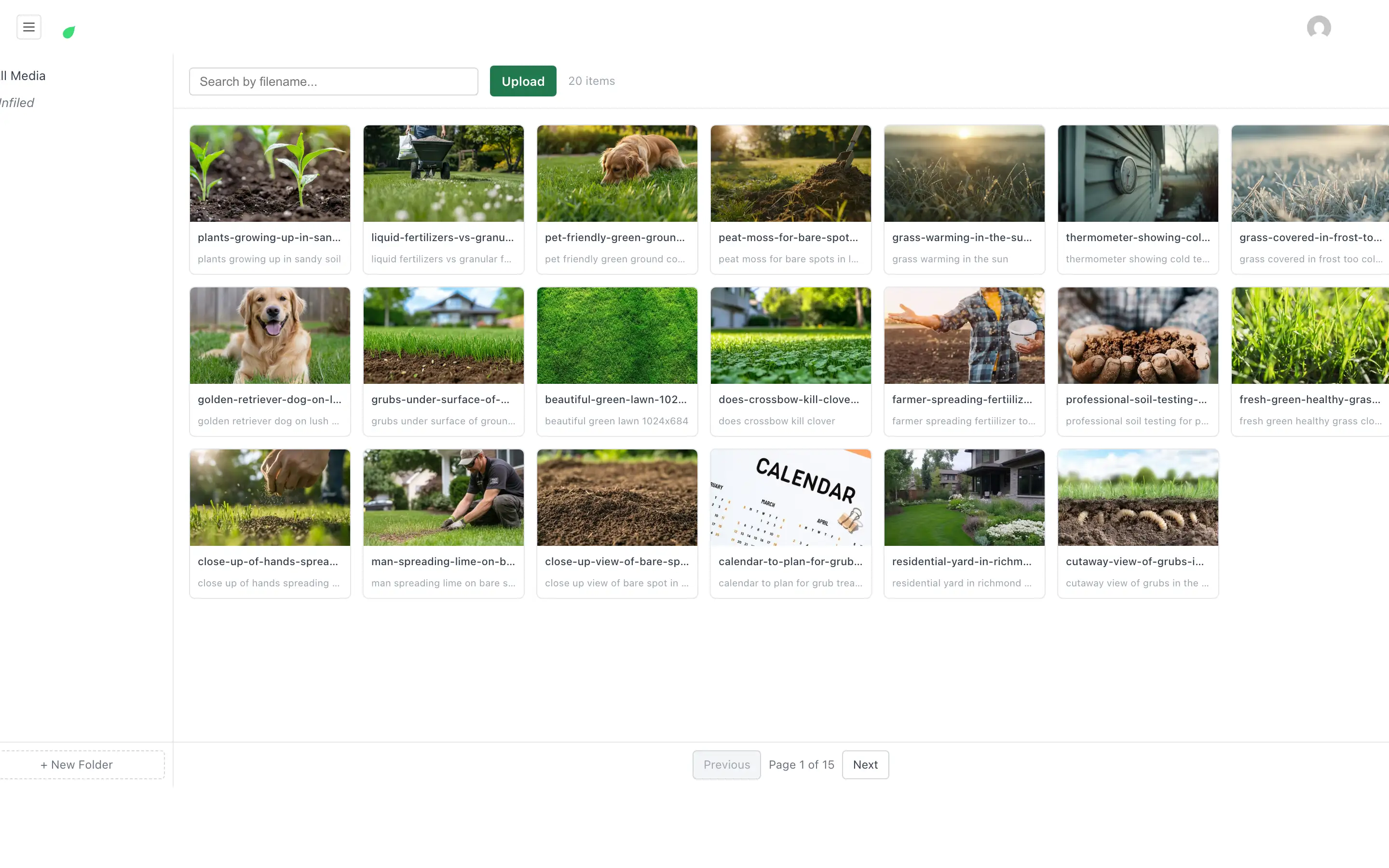
Upload and organize images per site - required alt text, folders, automatic WebP optimization, and R2 object storage.
Last updated
Each site has its own media library for images and files used across pages, the blog, and Site Settings (logo, favicon, social images). Media is strictly scoped per site: a user working in one client site only ever sees that site's files, and the operator sees everything.
Uploading#
- Open Media (or any media picker in the builder or an editor)
- Click Upload, or drag and drop files - multi-select is supported
- Each upload gets a starting Alt text made from its file name, because alt text is required; replace it with a real description (open the file in the CMS admin's Media list to edit it)
- Optionally file it into a folder
The media library has its own Upload button, so you can add files directly to the library rather than only through a page or a picker.
Alt Text Is Required#
Every image must have a short description. It is rendered as the image's alt attribute on the live site, which is what screen readers announce and what search engines index. Write what the image shows, not a keyword list.
Automatic Optimization#
Uploaded raster images (JPEG, PNG, and similar) are converted to WebP automatically, and the platform generates several responsive sizes alongside the original. The renderer picks appropriately sized variants, including smaller background-image variants on phones, so you can upload a full-quality photo and let the platform handle the rest. SVG and non-image files are stored as-is.
File Names#
Stored filenames keep a readable slug, which is good for image SEO.
Media Stays With Its Own Site#
Every site's media belongs to that site. Two safeguards keep it that way:
- Imports are checked. Bringing content from one site into another does not carry the first site's images with it, and a page or post that still references another site's media is refused rather than published with pictures the client does not own.
- A cross-site check runs across every site you operate, so if a reference ever did cross over, you find it rather than a client's visitor finding it.
Images hosted on an outside website are a different case and are kept as they are, rather than dropped, when a site is imported.
Folders#
Folders keep a large library manageable:
- Create folders (and nested subfolders) from the folder tree beside the CMS admin's Media list
- Filter the grid by folder, or search by name
- Move a file by changing its folder
Folders are organizational only - they do not change a file's URL.
Where Files Live and How They Serve#
Media is stored in your own object-storage bucket (Cloudflare R2), on infrastructure you control - see Architecture. On the published site, images serve from the client site's own domain under a /media/ path, not from a third-party hostname, which keeps URLs clean and portable.
New uploads are available to the builder and preview immediately. As with all content, the published site reflects media changes after the next Deploy.
Picking Media#
Anywhere an image is needed - an Image element in the builder, a featured image, the logo in Site Settings, an OG image - the same site-scoped media picker opens: search by file name, pick a file, or upload in place.
Summary#
| Capability | Details |
|---|---|
| Scoping | Per site; users see only their own site's media |
| Alt text | Required on every image |
| Optimization | Auto-WebP + responsive size variants |
| Organization | Nested folders + search |
| Storage | Your R2 bucket; served from the site's own domain |
| Permissions | Administrators, Editors, and Authors can upload; Contributors cannot |