
Help Center
Forms
Add lead forms to a Seedly Sites page by embedding your CRM's form, with automatic UTM capture and a built-in thank-you page.
Last updated
Seedly Sites does not include a native form builder. That is a deliberate choice: your leads should land in your CRM, not in a website database you then have to sync. The workflow is to embed the form your CRM already provides, and the platform makes that embed first-class - campaign attribution flows through automatically, and every site ships a confirmation page.
Embedding a Form#
Any provider that gives you an embed code works: GoHighLevel / LeadConnector, HubSpot, Typeform, JotForm, your own CRM's forms, or anything else that hands you an iframe or script snippet.
- In your CRM, create the form and copy its embed code.
- In the builder, open the page and add an HTML / Embed Code block where the form should appear.
- Paste the embed code and save.
- Preview the page and confirm the form loads and submits.
The embed block renders server-side in the published output, so iframes load and embed scripts execute on the live site. See Local Business Blocks for the block itself.
A few embed tips:
- Give the iframe a
titleattribute (accessibility) andloading="lazy"if the form sits below the fold. - Style around the embed with normal Sections and Columns; treat the form as one element in your layout.
One Form Per Location#
Each Location can carry its own Contact form embed and Careers form embed, set on the Location's edit page by the agency operator. Paste the form's full link, including https://, or its complete iframe code. Then put {{location.contactForm}} (or {{location.careersForm}}) in an HTML / Embed Code block, and every location that page is bound to shows its own form. The contact pages in the template packs already carry the contact-form token, and a location left empty shows no form. See Merge Tokens.
Campaign Attribution (UTM Auto-Capture)#
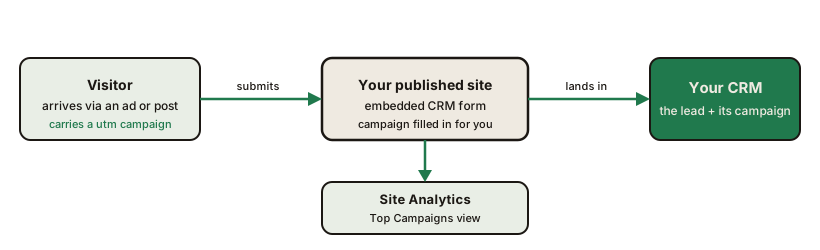
When UTM persistence is on in the site's Settings, the published site remembers the campaign a visitor arrived with for the rest of the visit. To pass it to your CRM, also turn on CRM embed attribution, as below, so a submission from a deep page still tells your CRM which ad or post brought the lead in.
How it behaves:
- A landing URL carrying campaign parameters (
utm_source,utm_medium,utm_campaign, and click IDs likegclidorfbclid) is stored for the visit and persists as the visitor navigates between pages. - CRM form embeds you list: with the separate CRM embed attribution setting on (in
/admin, open the site's Site Settings, tick Enable Crm Embed Attribution, and list the hostnames in Crm Embed Hosts), the stored campaign parameters are appended to the address of form embeds whose hostnames you list, so providers that read UTMs from their form URL receive them. Nothing fills hidden form fields, and embeds you have not listed receive nothing. - The same campaign values feed the site's Analytics Top Campaigns view, so you can compare traffic-side campaign data with the leads that reached the CRM.
Turn on UTM persistence in Settings (and CRM embed attribution in /admin, if you use it), then redeploy the site so the script ships (Deploying).
The Thank-You Page#
Every published site includes a built-in /thank-you/ confirmation page, styled with the site's chrome. Point your form's post-submit redirect at it:
- In your CRM's form settings, set the redirect / confirmation URL to
https://your-client-domain.com/thank-you/. - Optionally set its meta description in the CMS admin's Site Settings (Thank You Meta Description).
Prefer a fully custom confirmation page? Build a normal page in the builder and point the form's redirect there instead. A dedicated confirmation URL also gives you a clean conversion signal for anything that tracks page views.
The built-in page, and any page you build with the slug thank-you, also sends a ws_conversion event to the page's data layer, so your own Google Analytics or Tag Manager setup can count each form submission as a key event. Nothing about the submission is stored in Seedly Sites.
What Not to Expect#
To keep this honest:
- There is no drag-and-drop form designer, no field editor, and no submissions inbox inside Seedly Sites. Submissions live in the system that owns the form - your CRM - which is where you want them.
- Forms on a site you migrate in do not survive the port; re-add them as embeds afterward.
Summary#
| Piece | How |
|---|---|
| The form itself | Your CRM's embed code in an HTML / Embed Code block |
| Attribution | UTM persistence in Settings; opt-in CRM embed attribution adds the campaign to allow-listed form iframes |
| Confirmation | Built-in /thank-you/ page, or any page you build |
| Submissions | Live in your CRM, not in Seedly Sites |